


Every week, sales managers ask the same questions: Which customers did the reps see, what orders did they take and how much did they collect? When the answers come from phone calls, WhatsApp messages and Excel files merged at month-end, part of the picture is always missing. Here’s what managing field sales reps should cover, which reports to review each week and how field sales software brings it together.
What does managing field sales reps involve?
It means following the field team’s work through records: planned visits and their outcomes, orders placed for dealers, payments collected, quotes awaiting approval and progress on targets. With a good setup, the sales manager gets these answers without calling anyone:
- Which customers were due a visit this week, which were visited, and with what outcome?
- How much was ordered for each dealer, and is anything awaiting approval or ERP transfer?
- How much was collected, and how much of it came in cash, cheques or promissory notes?
- Which quotes are awaiting approval, and which became orders?
- Where does each rep stand on targets, and which sales and collections earn their commission?
Where do Excel and phone calls fall short?
With a few reps, Excel and the phone work for a while. As the team and customer base grow, the same problems keep coming up:
- The visit plan sits in a file and the outcome in a message; a visit with no written outcome never shows up.
- Reps arrive without knowing the customer’s current balance or open invoices, so they can’t discuss payment.
- Field orders are phoned in to head office and keyed into the ERP again; price and discount errors surface only after invoicing.
- Cheque and promissory note details stay on paper, and it’s unclear which invoices are settled.
- Targets and commissions are worked out by hand at month-end, and the numbers get disputed.
- When a rep leaves, the customer history leaves too.
The problem isn’t the reps but scattered information. The fix: every record goes into one system as the work happens.
From visit to commission: what should be recorded?
In Buyasoft CRM, all the records below link to the same customer card. Reps see their own customers; managers see the whole team’s.
Visit plans and outcomes
A visit is recorded in two steps: the plan, then the outcome after the meeting. Logging the outcome closes the visit as completed, postponed or canceled. You choose the fields to suit your business, such as visit purpose, meeting summary, next step and expected order value.
Managers can assign visits to the team, and unplanned work such as a phone call is logged in one step, with a note. Visits past their date but still pending are those with no outcome: save a filter and list them in one click every week.
The customer card, before the visit
Before a visit, reps should see the customer’s total and overdue balance, the amount not yet due and the average term. Recent invoices and product history come from the ERP, so reps know what the customer last bought, and at what price. Contacts, phone numbers and documents are on the same card.
Orders for dealers
Reps sign in to the B2B portal with their own login and pick a dealer; the cart applies that dealer’s prices, discounts and promotions. You set the discount a rep can give and a minimum margin over the last purchase price, and the cart blocks changes beyond them.
Credit limit and overdue balance are checked in the ERP at order time, and orders that break a rule go for approval. The order list shows who placed each order, dealer or rep, and when dealers order in the portal themselves, their rep is emailed.
Payments
Payments are recorded by type: cash, cheque, promissory note, credit card or bank transfer. As the rep types the amount, the customer’s open invoices are color-coded as fully or partly covered. Cheques and promissory notes need due dates and endorsement details, and you can require that cheques not be dated past the customer’s average term.
The cheque or receipt is attached as a file; approved payments go to the ERP, with the transfer status in the list. Reps can also take card payments for a dealer in the portal; our B2B online payments page has the details.
Quotes and approvals
When a dealer asks for a quote, it’s prepared in the CRM on that dealer’s terms. Based on your rules, quotes with special prices or special discounts, in a set amount range or for certain customer groups go to a manager for approval, in several steps if needed. An accepted quote becomes an order in one click.
Targets, points and commissions
Targets should be measurable: number of activities, revenue, units sold, amount collected, unique customers or unique products. Set them per rep, department or customer, yearly, quarterly or monthly, and split yearly targets into months if you like. With a minimum amount on a unique-customer target, customers who buy less don’t count.
Points and commissions are calculated from actual sales and collections in the ERP, at rates you set by product and customer group; multiplier rules can tie them to target achievement. Each rep sees on their own screen which sales and collections their points came from, and dealers can follow their targets in the B2B portal if you like.
Which reports should you review in the weekly meeting?
Before the meeting, match each question to a report. Some of the ready-made reports in Buyasoft CRM:
| Question | Report | What to look at |
|---|---|---|
| Did visits go to plan? | Activity count report | Completed, postponed, canceled and pending visits by rep |
| Where do we stand on targets? | User KPI report | Target, actual and completion rate for each target |
| What orders came in from the field? | B2B order detail report | Order source (dealer, rep or quote), approval and ERP transfer status |
| How much was collected? | Collection detail and account collection reports | Collections by rep and customer, broken down by payment type |
| Which receivables are overdue? | Overdue receivables | Open invoices with days overdue and the rep responsible |
| Where do quotes stand? | Quote detail report | Status, approval status and quotes converted to orders |
| Who should we call? | Contacts who search but don’t order | Dealers who search for products in the portal but don’t order |
Filter reports by rep, department or customer, export them to Excel or have any report emailed at the times you set. The sales period comparison report shows each rep’s sales in two periods side by side.
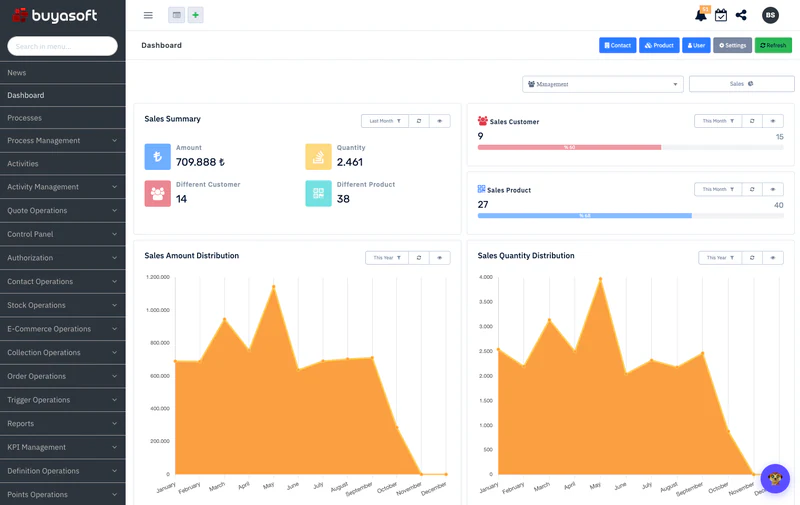
Managing field sales with Buyasoft CRM
The B2B portal and Buyasoft CRM share one platform, so dealers, rep assignments and pricing terms are common to both. Orders and payments go to your ERP; we work with more than 15 ERP and accounting systems, including Logo, Netsis, Mikro and SAP. During setup, we connect your ERP and define the following with you:
- Rep assignments Which dealer belongs to which rep; in the portal, reps pick only their own dealers.
- Visit types Customer visits, phone calls and meetings, each with its own plan and outcome fields.
- Limits and approval rules Reps’ discount and margin limits, and which orders and quotes go for approval.
- Payment types Which of cash, cheque, promissory note, credit card and bank transfer you accept, and in which currencies.
- Targets and point rules Targets one by one or in bulk from Excel, plus point rates and multipliers.
When a rep is on leave, rep delegation opens their customers to another user; when a rep leaves, you assign their customers to a new rep, and past records stay in place.
With the Buyasoft CRM app for iOS and Android, reps see their customers and log visit outcomes on their phones; when stuck, they ask MeerChat, the AI support assistant in the CRM panel.
For barcode picking in the warehouse, Buyasoft WMS works with the same ERP. Details for field teams are on our field sales CRM page.
Frequently asked questions
Can reps earn a different commission for collecting old debts?
Yes. If your ERP reports which invoices a payment settles, you set one point rate for the part settling this month’s invoices and another for the part settling earlier months’ invoices, so collecting older balances can be rewarded separately.
How do we import our targets from Excel?
Export the target list to Excel as a template, fill in the values and upload it. If a row has an error, the file is rejected and you get a report of which row has which error.
In short: Managing field sales reps means bringing visits, orders, payments and targets together on one customer card. When records are entered as the work happens, the weekly meeting is about decisions, not gathering numbers.
Tell us how your field team works today, which reports you need and which ERP you use, and we’ll prepare a demo tailored to you.
Request a free demoor call us on +90 216 277 70 80.