


When you sell through dealers, no product has just one price. One dealer buys at 20% off, another from a different price list; one qualifies for a promotion, the next doesn’t. On phone orders, your sales team has to remember all these terms and get the math right. Here’s how a dealer portal applies price lists, discounts and promotions to every order with the same rules.
Why dealer-specific pricing goes wrong over the phone
On a phone order, the rep first has to find out which price list the dealer buys from and which discounts they’re entitled to, then check whether the product is on promotion, whether the promotion is still running and whether it covers this dealer. When that information is scattered across Excel files, emails and a few people’s memory, mistakes come easily and often surface only after invoicing.
| Topic | By phone and email | In the dealer portal |
|---|---|---|
| Price list | The rep looks up the dealer’s list in files | Dealers see their own prices when they log in |
| Cascading discounts | Worked out by hand; 20% + 10% is sometimes taken as 30% | Calculated in the same order in every cart |
| Promotions | Expired promotions, or ones for other groups, may get applied | Dates, quantities and dealer groups are checked automatically |
| Rep discounts | An extra discount may never be recorded | Only within set limits; approval is optional |
| ERP transfer | The order is re-keyed into the ERP | The order goes to the ERP with its discounts |
Price lists: which dealer sees which price?
In a dealer portal, prices come from your ERP. A product can have several price lists, such as Price 1 and Price 2, and pricing conditions decide which one each dealer buys from. Every dealer and every product has a condition code; the condition where the two match sets the price list and discount that dealer gets on that product.
So the same product shows a different price depending on who’s logged in, and a product with no condition for a dealer isn’t shown to that dealer. Exceptions don’t require changing the condition: you can give a dealer group a different price list for certain products, or tie a price list to a payment method, such as a separate list for card payments.
Discounts by dealer, dealer group and brand
How are cascading discounts calculated?
Discounts can be chained, as in 20% + 10% + 5%. Each rate applies to what’s left after the previous one: on a ₺1,000 product, 20% leaves ₺800 and 10% leaves ₺720, so 20% + 10% comes to 28%, not 30%. The portal runs this math in the same order in every cart, and dealers see which rates make up their discount.
Extra discounts for a dealer or a dealer group
On top of a dealer’s base discount, you add whatever layers you need:
- Dealer-specific extra discount: an extra discount or a separate price list for one dealer on products from a given manufacturer (brand) or product group.
- Dealer group discount: for example, 20% + 10% for the “Gold dealers” group on products in the “General products” group, with start and end dates.
- Flexibility: raising or lowering a group’s base discount by a few points for a set period.
For each layer, you choose whether it adds to the base discount or replaces it.
Promotions: tiered, free-gift and group-specific
Promotions are set up per product: with one campaign code, you can load a promotion onto hundreds of products from Excel in one go and update them together. Promotion types:
- Price promotion: the product sells at a fixed price between set dates, for example ₺199 instead of ₺250.
- Discount promotion: an extra discount from a set quantity upwards, for example 15% + 5% on 2 units or more.
- Tiered promotion: the price drops or the discount grows with quantity, for example separate tiers for 5, 10 and 20 units.
- Free gift: a free product is added to the cart when the dealer reaches a set quantity, and can multiply as the quantity does.
You can also run a dated promotion across a whole product group. Coupons kick in when the cart total or quantity reaches a target, and give a discount or a free product.
Validity, audience and rules
Every promotion has start and end dates, with times if you need them, and ends on its own when it expires. You also set:
- Who qualifies: selected dealer groups, or everyone except certain groups; dealers only, or sales reps only.
- How much is sold: the promotion ends when its quantity runs out, and a cart line beyond the remaining quantity is split into a promotional line and a regular-price line.
- How it combines with other discounts: does the promotion add to the dealer’s discounts, or replace them?
You can also choose to skip the promotion for dealers whose own price is already better. Stuck setting one up? Ask MeerChat, the AI support assistant in the bottom-right corner of the admin panel you run the portal from.
How is the price built in the cart?
When a dealer adds a product to the cart, the portal calculates the price in the same order every time:
- Price list From your ERP, based on the dealer’s condition
- Dealer discounts Base, brand and group discounts
- Promotion If the date, quantity and group qualify
- Cart discount By coupon and payment method
In a price promotion, the promotional price replaces the list price, and you choose whether dealer discounts still apply on top of it. The payment method counts too: paying upfront can earn a discount, paying on terms a surcharge.
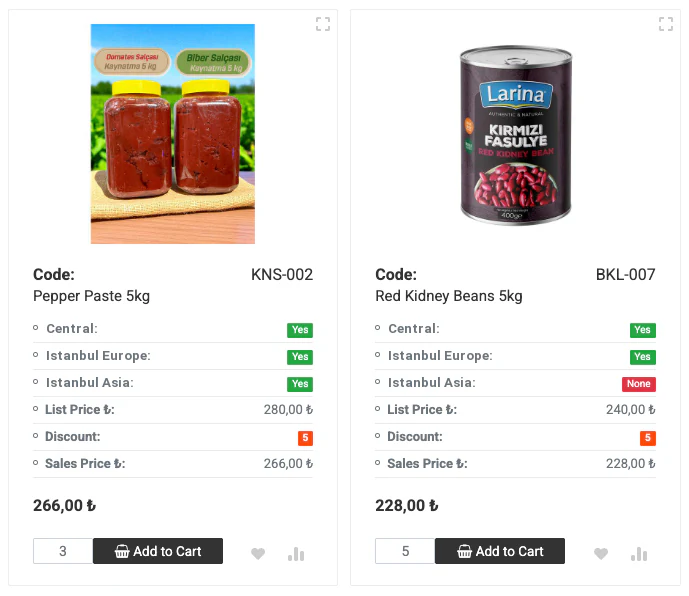
Dealers see the result on the product card and in the cart: the list price, their discounts and the sales price they’ll pay. You choose which prices appear and whether they include VAT, and can hide the discount rates to show only the net price.
Products on promotion carry a promotion badge and details such as the price when buying at least 10 units; with less than seven days to go, a badge shows the days left. In a tiered promotion, if a dealer enters a quantity below the top tier, the portal lists the tiers with their unit prices, and the dealer adds the one they want in one click.
Sales rep discounts: limits and approvals
Sales reps use the same portal: in sales rep mode, a rep picks a dealer and orders with that dealer’s prices and discounts. Reps you authorize can change the price or discount in the cart, but only within your limits:
- Maximum discount: 10%, for example, applied either to the total including existing discounts or only to what the rep adds.
- Minimum margin: based on the last purchase price; the price can’t go below this floor.
- Scope: which reps, dealer groups and product groups, for which dates.
Changes beyond a limit aren’t saved. Orders with special prices or discounts inside the limits can go for approval if you want: you decide who approves, and approvers get an email. Quotes with special prices or discounts also go to a manager for approval by your rules. You manage rules, orders and quotes in Buyasoft CRM; for your field team, see our Field Sales CRM page.
Keep your ERP as the source of your prices
A dealer portal shouldn’t be a second place to maintain prices. Buyasoft B2B can take prices, discount definitions, dealer conditions and promotions from your ERP, at a sync interval we set together based on your needs. Prices the ERP no longer sends can be reset to zero so nothing sells at an old price, and a rule can stop orders that contain a product with no price.
Each order reaches the ERP with every line’s list price, discount rates and promotion details, and the document number the ERP returns is saved with it. Through your ERP, the order also reaches the warehouse; with Buyasoft WMS, it’s picked and checked by barcode. For ERP-specific details, see our Logo, Netsis, Mikro, SAP and other integration pages.
Frequently asked questions
Do we need a separate price list for every dealer?
No. You match dealers to condition codes and groups, so dealers with the same condition share a price list and discount. For a case that applies to one dealer only, you give that dealer an extra discount.
Can one product have more than one promotion?
A product’s general promotions never overlap: saving a new general promotion with overlapping dates deactivates the old one. Promotions for a specific dealer group, however, can run alongside the general one, and you can cap their combined sales with a shared quantity limit.
In short: to give every dealer the right price, define your pricing rules in one place and apply them in the same order to every order. Prices come from your ERP, promotions kick in on their own, and reps give discounts only within the limits you set.
Tell us about your price lists, your discount and promotion structure and your ERP, and we’ll prepare a demo tailored to you.
Request a free demoor call us at +90 216 277 70 80.