


Distributors who decide to move their dealers to a portal usually start with the same question: where do we begin? A dealer portal isn’t a standalone website; it works with your ERP data, your pricing rules and your sales team. So setting one up is less about installing software and more about moving a sales channel. The eight steps below take you from preparation to the point where all your dealers order through the portal.
1. Set your goals and scope
First, be clear about what you expect from the portal. Fewer orders by phone, WhatsApp and email? Dealers checking their own balance and invoices? Faster collections? Your priority decides which features you start with. To define the scope, answer these questions:
- Which dealers will use the portal, and how are your dealer groups split?
- Which products and warehouses will be open to dealers?
- Will dealers only place orders, or also make payments and returns?
- Will your sales reps enter orders in the portal on behalf of their dealers?
These answers are the first draft of the rules you’ll set up in the next steps.
2. Connect your ERP: which data comes from where?
The portal should run on your ERP data, with nothing kept in two places. Buyasoft B2B connects to your ERP through an integration service that is configured for it during setup. First, map out which data flows in which direction:
During setup, definitions such as warehouses, price lists and document series are mapped to their counterparts in your ERP, and you choose how often each kind of data comes in. The ERP’s document number is written back to the order, and if a transfer fails, the order is sent again. Before the portal opens to dealers, sample orders and payments are checked in your ERP.
For details on your ERP, see our Logo, Netsis, Mikro, SAP and other integration pages. If your ERP isn’t listed, we can connect to it too, as long as it allows access to its database or services.
3. Create dealer accounts, users and permissions
Each dealer appears in the portal with its customer account from the ERP, complete with payment terms, credit limit, sales rep and delivery addresses. A dealer can have several users, each logging in with their own email address or user code. Pricing terms, main warehouse and payment terms are set per dealer and apply to all of the dealer’s users. Per user, you can, for example:
- Let them see products and prices without sending orders.
- Hide invoices, the balance or the online payment pages from them.
You can also put the financial pages behind a separate account password, and limit which product groups and warehouses each dealer or dealer group sees. You manage the portal’s rules and your team’s permissions from the Buyasoft CRM panel: permissions are granted through roles, and your department tree decides who sees which records. Managers see their team’s records; reps see their own dealers.
4. Configure price lists, dealer discounts and promotions
A dealer portal’s most important job is showing every dealer their own price. In Buyasoft B2B, each dealer has pricing terms that decide which price list they see products from, and with what discount. Extra dealer-specific discounts and dealer group and product group rules come on top; stacked discounts such as 20% + 10% + 5% are calculated in the cart and passed to your ERP line by line.
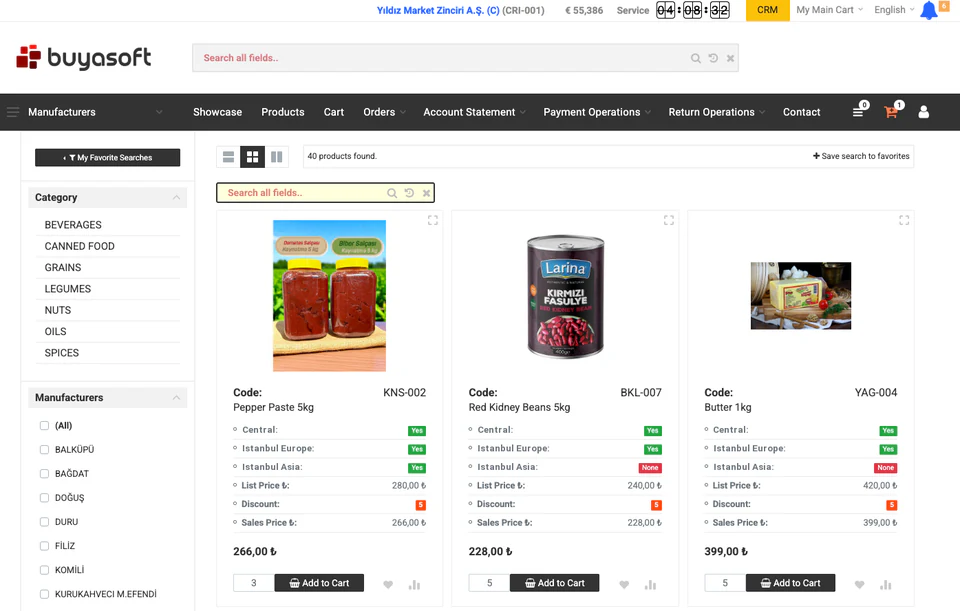
Pricing terms also decide which products a dealer sees: a product with no entry in the dealer’s terms doesn’t appear on their screen. So during setup, check each dealer group with a sample dealer: log in to the portal as a rep, pick the dealer, and you’ll see their prices and discounts.
Discount, terms and promotion definitions can come from your ERP, and you can set up other promotions and coupons in the panel for specific dates and dealer groups. With tiered promotions, dealers are invited to top up to the next tier.
5. Define payment methods, credit limits and approval rules
You decide which payment methods each dealer group can choose in the cart. The payment method can affect the price too: a discount for paying cash, a surcharge for paying on terms, or a switch to a different price list.
Next, decide when an order should be held. Every order is checked against your rules as it’s created:
- The remaining credit limit is checked in the ERP at order time, counting orders not yet sent to the ERP.
- Overdue balances are checked against the day and amount limits you set.
- Rules can also cover the cart total, margin (against the last purchase price), special prices and discounts.
Orders that meet your rules are approved automatically, and the rest go to the right manager for approval. You choose the approvers, and they get an email. You can also set order quotas by dealer and product for a date range.
Online payments
Dealers pay their balance by card in the portal, and can pay for orders by card at checkout. Payments go through banks’ virtual POS and payment providers with 3D Secure; installments and interest follow your rules, and payments reach your ERP with their installments. Details are on our B2B online payments page.
6. Decide on delivery options
You define the delivery methods dealers can choose in the cart. You can offer each one to specific dealer groups, days and time slots, and show a countdown to the cut-off time in the portal’s top bar. For some delivery methods, you can require an order note or the name of the person receiving the goods.
At checkout, the dealer picks one of their saved addresses or, if you allow it, enters a different ship-to address, and chooses a delivery date if needed. If you split orders across warehouses, the dealer’s main warehouse is used first, then the others in the order you set. The delivery and payment method, ship-to address, delivery date and order note go to your ERP with the order. And if you want barcode picking and checking in the warehouse too, Buyasoft WMS works with the same ERP.
7. Prepare your sales team and the CRM panel
The portal doesn’t replace your sales team; it changes their job. The dealer portal and Buyasoft CRM run on the same platform: dealers’ orders, payments and searches show up in the CRM, and approvals and ERP transfers are managed there too. Before the switch, get these ready:
- Rep assignments: Each dealer is assigned a rep, and assignments can also come from the ERP. For that, keep CRM user codes the same as the sales rep codes in your ERP.
- Sales rep mode: Reps log in to the portal with their own account, pick a dealer and order on their behalf; you set the maximum discount and minimum margin they can apply.
- Notifications and reports: Reps get an email for every new order and card payment, and reports on searches with no results and on dealers who search but don’t order show who needs a call.
For your field team, see our field sales CRM page. When your team gets stuck in the panel, they can ask MeerChat, the AI support assistant in the bottom-right corner; it knows which page is open and answers for that screen.
8. Start with pilot dealers, then roll out
Rather than moving all your dealers at once, start with a few. Dealers who order often, have different pricing terms and are open to new things make a good pilot group, and they let you test your rules with real orders.
- Choose a pilot group A few dealers from each group
- Track logins Who got a password, who logged in?
- Fine-tune the rules Pricing, search and approval rules
- Open in groups Announce it, with your reps’ support
During the pilot, the login check report shows which dealer users have been given a password and who has logged in. Use searches with no results to fix product names and the search dictionary, and check the net prices in carts and the discount lines that reach your ERP. Orders held for approval also show whether your rules kick in more often than they should.
Then open the portal to the remaining dealers in groups; you can announce the launch on the portal’s showcase and with pop-up notifications. During the transition, your reps can enter phone orders in the portal using sales rep mode, so those orders pass your rules too and end up in the same list.
Frequently asked questions
What does Buyasoft do during setup?
We connect the system to your ERP, set up your rules and permissions with you and train your team, and we stay by your side throughout the switch.
How do new dealers apply to join the portal?
You can add a “Sign up” link to the portal’s login page. Prospective dealers fill in an application form you build without writing code, and each application goes through the approval steps you define.
In short: Moving to a dealer portal starts with a well-built ERP connection and clear rules; it’s tested with pilot dealers and then rolled out in groups. Get the sequence right, and your dealers place their own orders while your team only handles the exceptions.
Let’s talk about your dealer structure, your pricing and discount rules and your ERP, map out your rollout plan together and prepare a demo tailored to you.
Request a free demoor call us on +90 216 277 70 80.